
StepVane video guides: learn one thing at a time
Each guide is a short, narrated video of the real StepVane Studio, about one job: build a first app, connect a database, pull data from an API, lay out a screen, publish, or back up your server. Every video has captions and a transcript, and the steps are in the manual too (Documentation).
Getting started
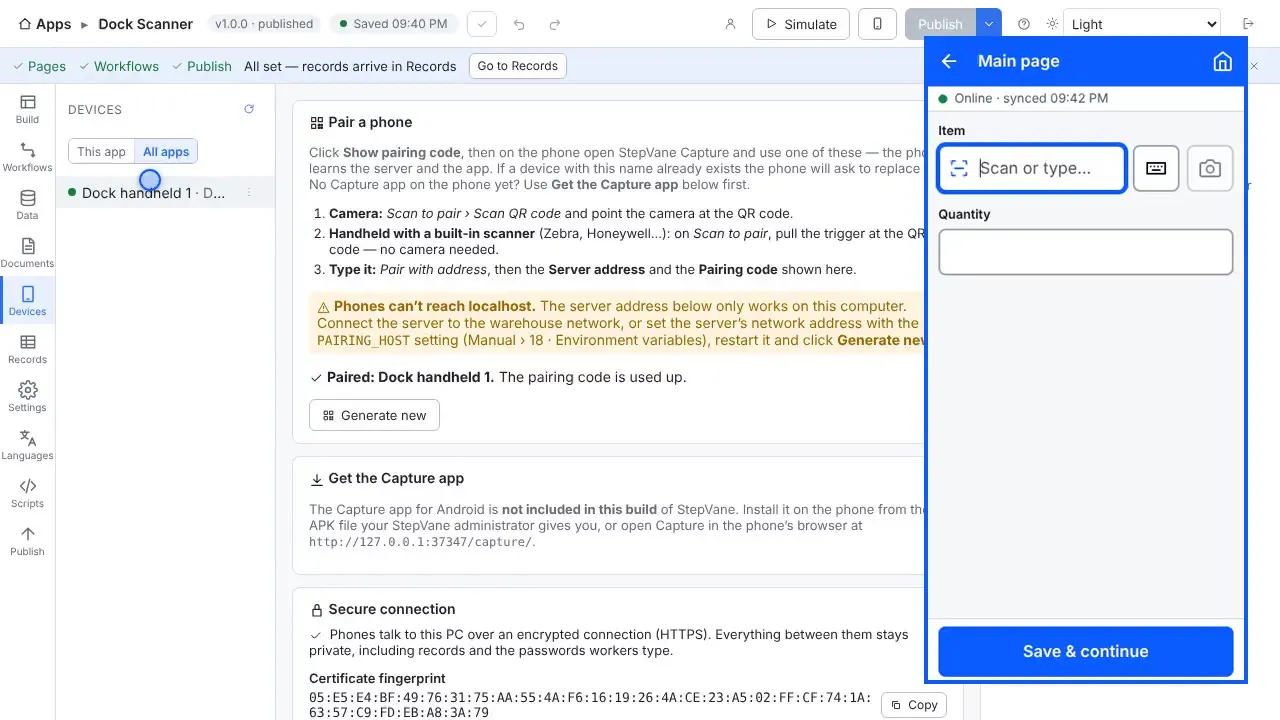
Install StepVane and Build Your First Barcode App
Walk from a fresh Studio to a first working app: install steps, a two-field app, publish, pair a phone, scan, and see the record in Studio.
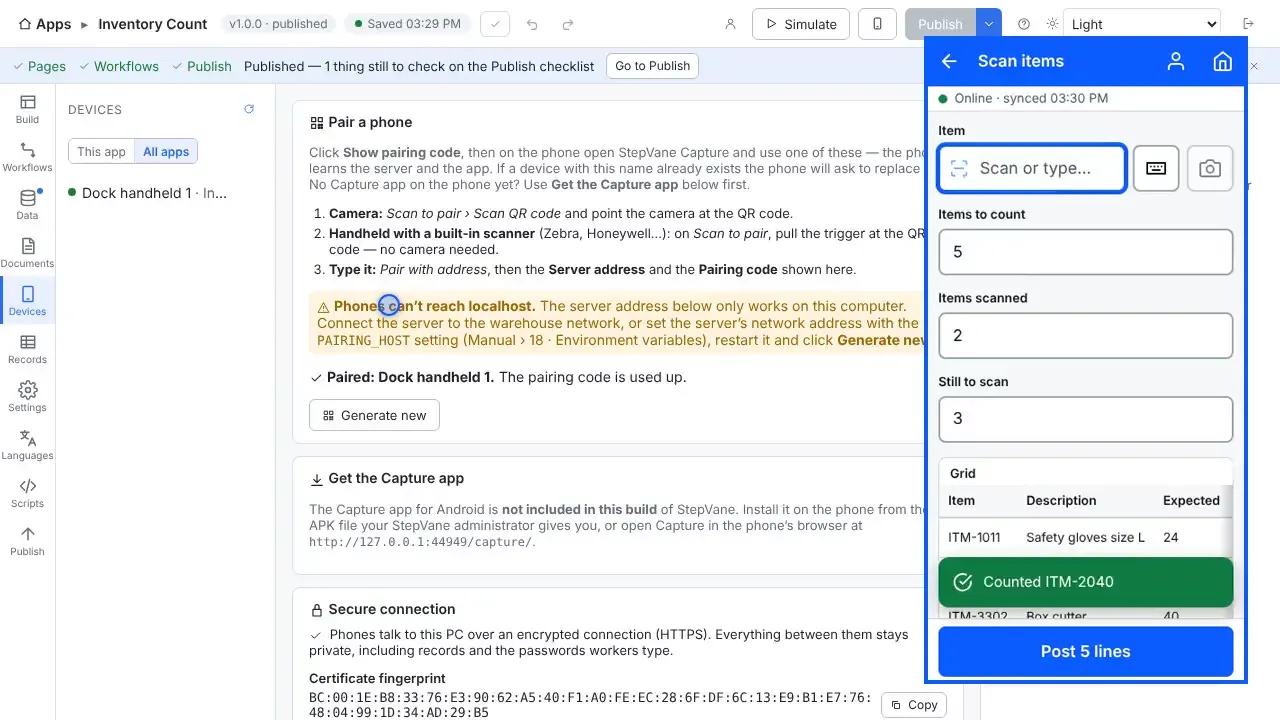
Build an Inventory Counting App, Step by Step
Start here. A slow, narrated build of a whole app: connect data files, build two workflows one step at a time, shape the request your API endpoint expects, add a PIN login, then scan on a handheld and post the count.
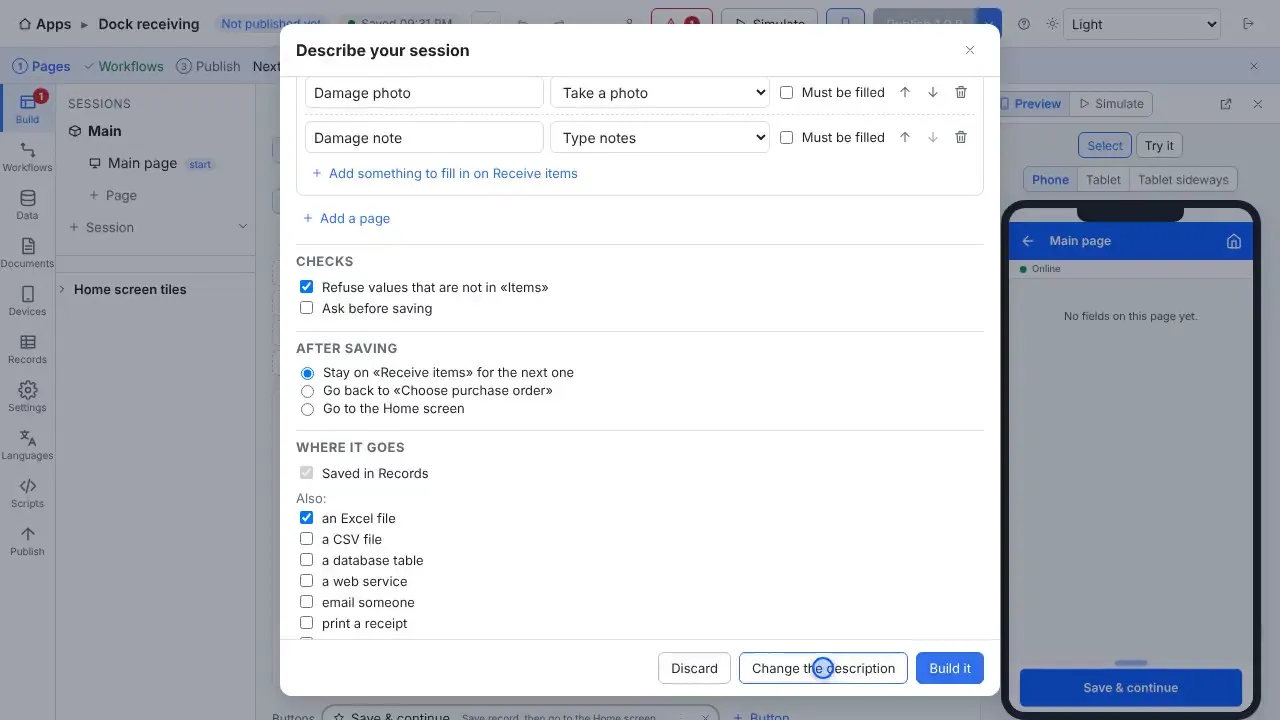
Describe the App You Want and Let the AI Helper Build It
See how to set up the AI helper once, describe a session in your own words, check the outline it drafts, and build it (this recording uses a test stand-in for the helper).
Build your app
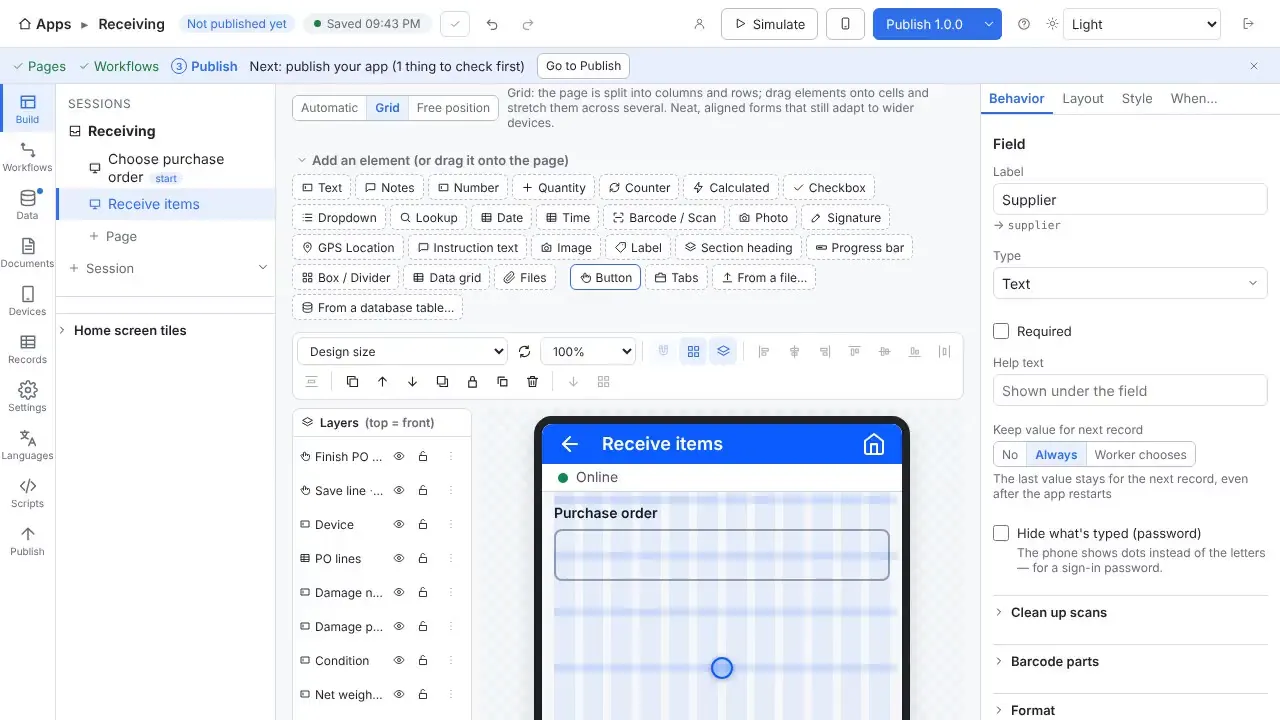
Screen Layouts: Automatic, Grid and Free Position
See the three page layouts and when to use each: Automatic for speed, Grid for neat aligned forms, Free position for an exact design.
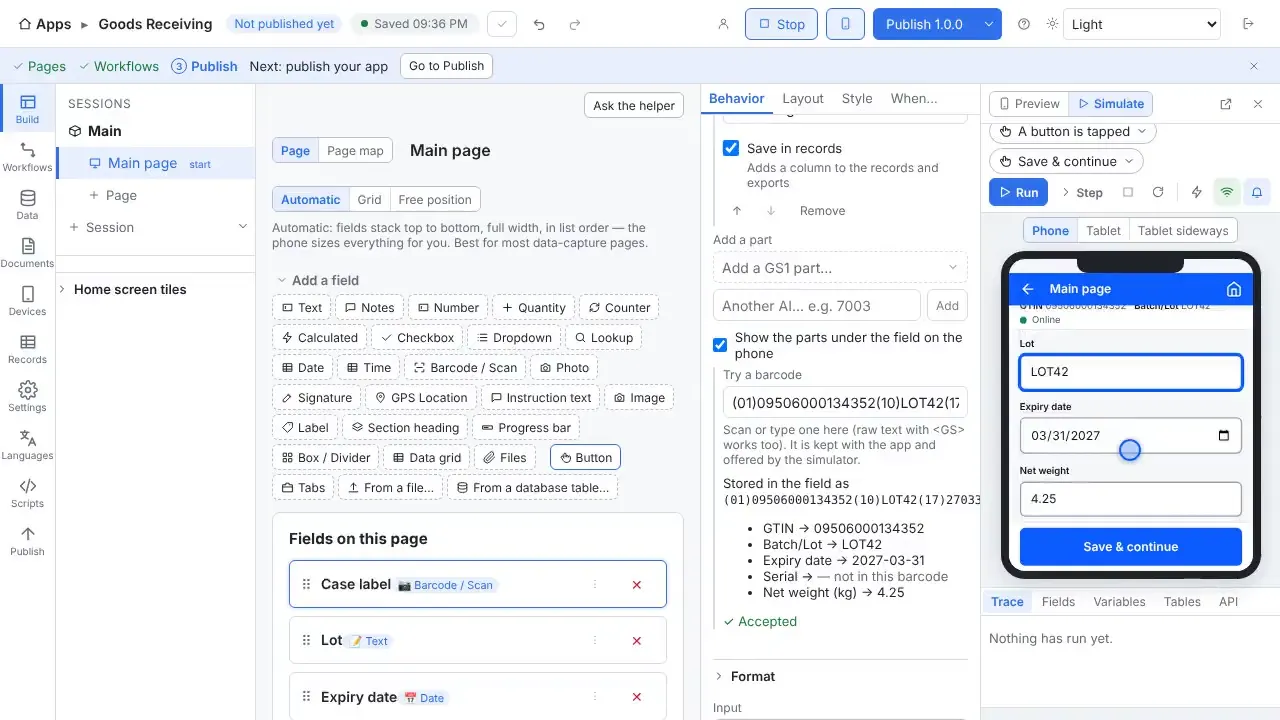
Split a GS1-128 Barcode into Lot, Expiry and Weight
Split a scanned GS1 barcode into named parts, choose which field each part fills, and check it with a sample and the simulator.
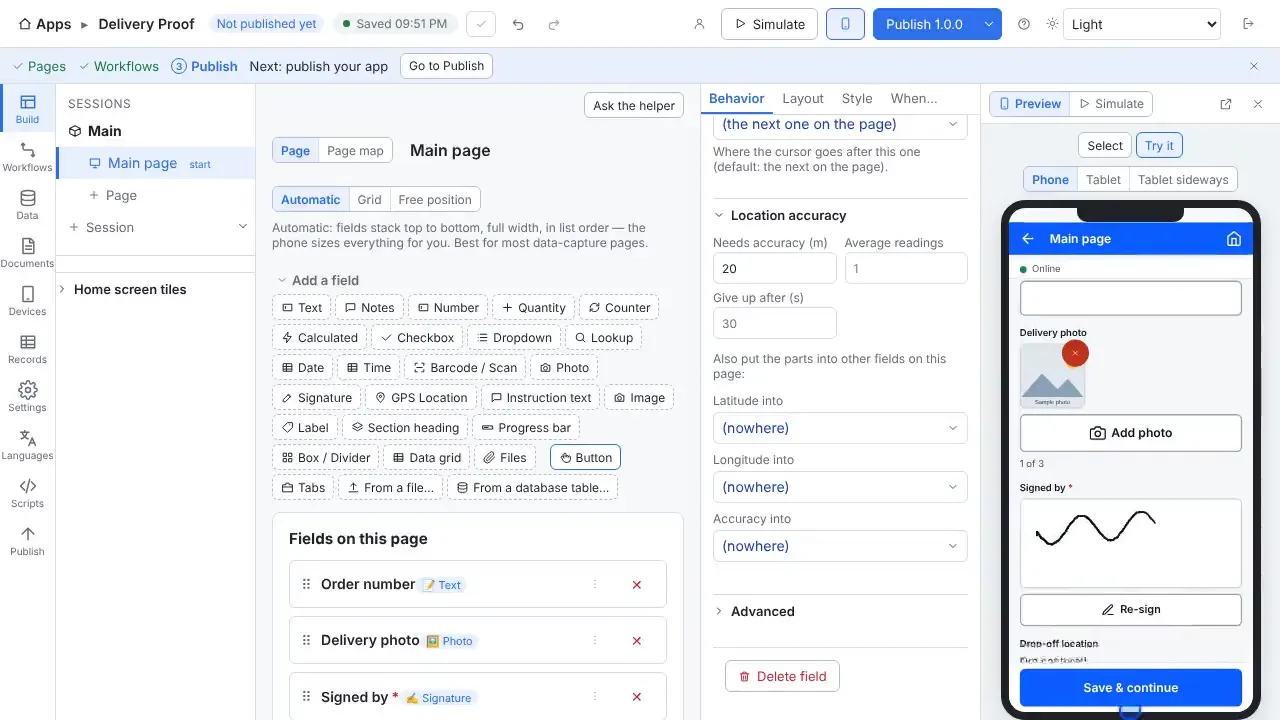
Capture Photos, Signatures and GPS in a Handheld App
Add Photo, Signature and GPS Location fields to a page, set their options, and try them in the phone preview.
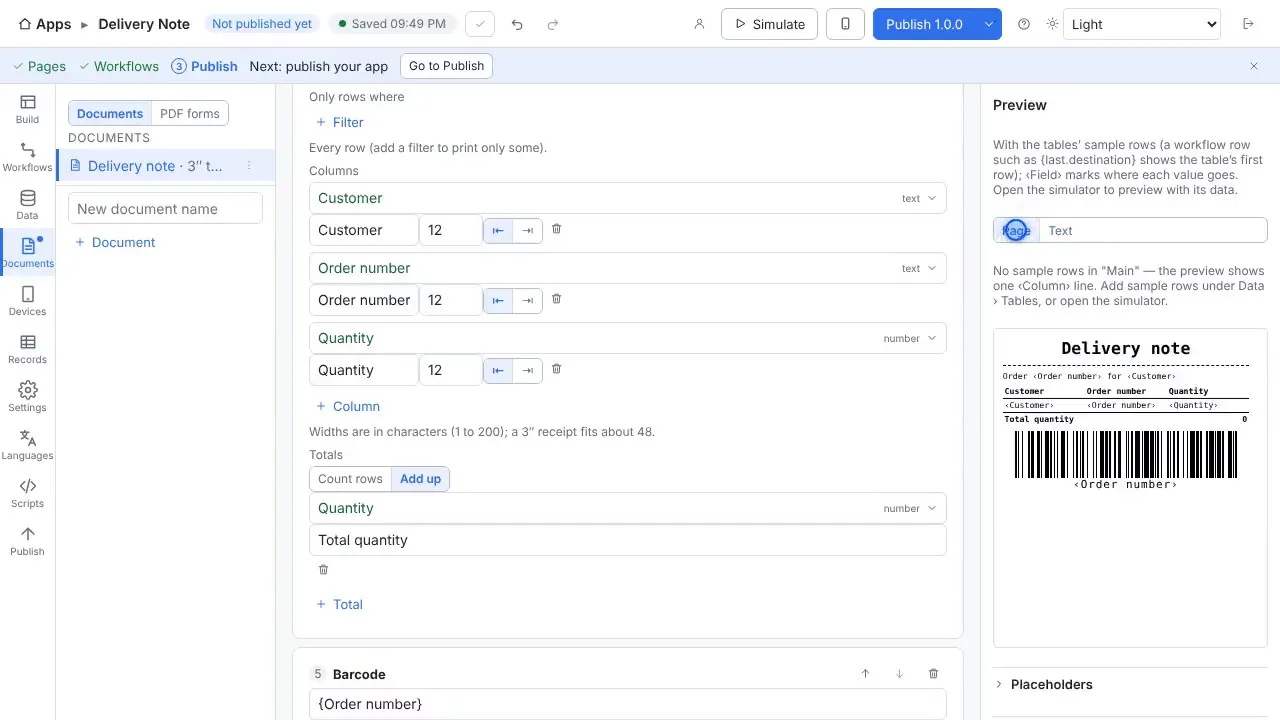
Create PDF Forms and Delivery Notes, and Print Them
Build a printable delivery note document, fill your own fillable PDF form from the same fields, and add a button that prints it.
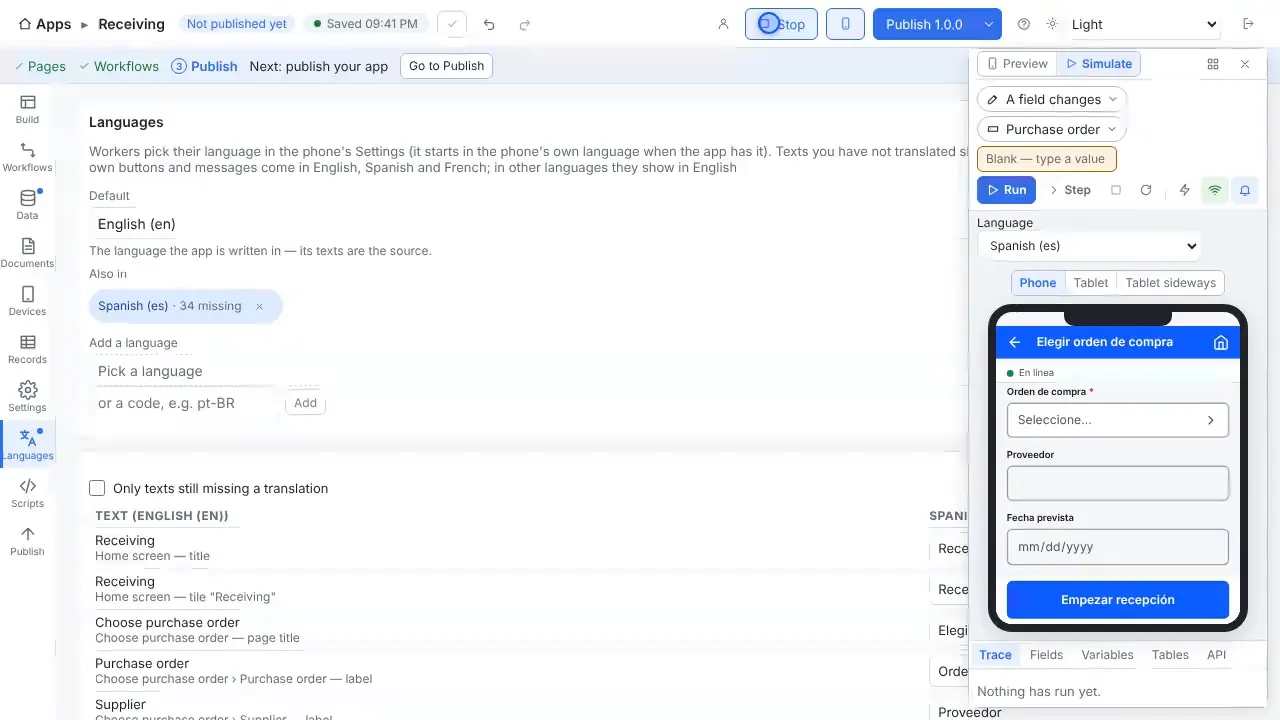
Translate a Handheld Scanning App into Other Languages
Add Spanish and French to an app, type the translations in the grid, and check the phone in each language.
Connect your data
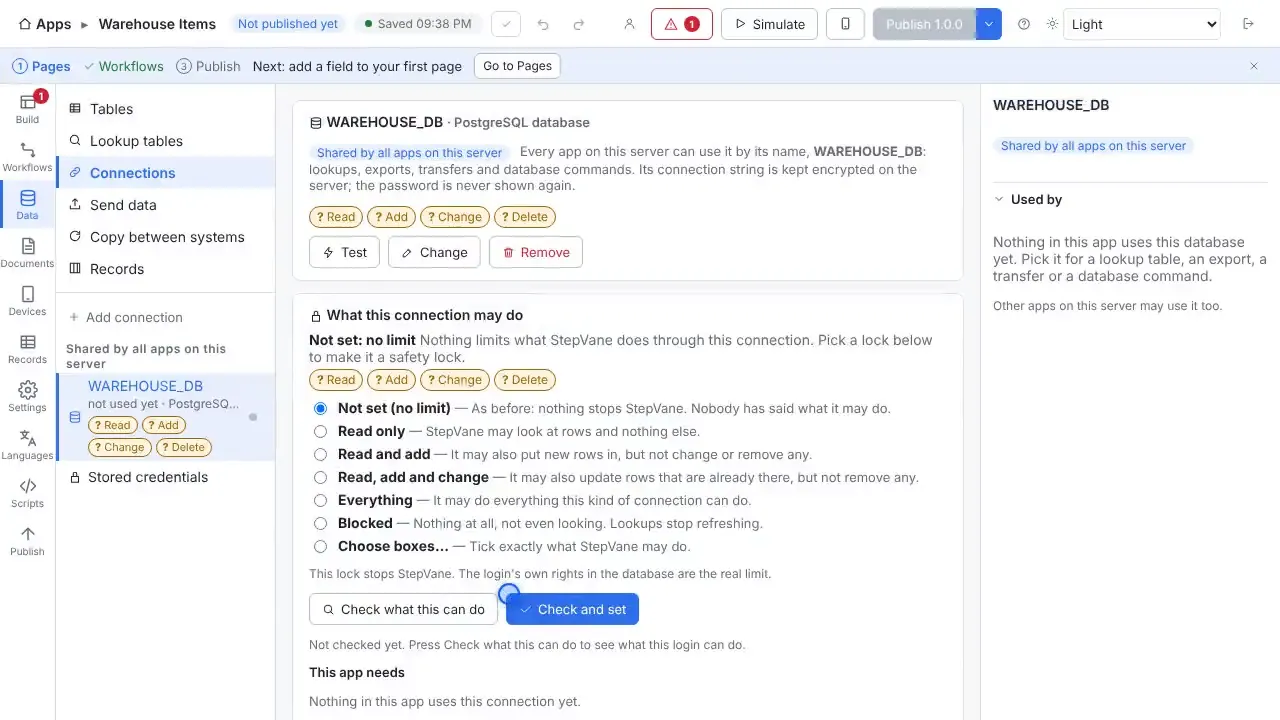
Connect a Handheld App to SQL Server or PostgreSQL
Add one database connection on the server, test it, and pull rows into a lookup table with a SELECT query, so every handheld carries the data and scans work with no signal.
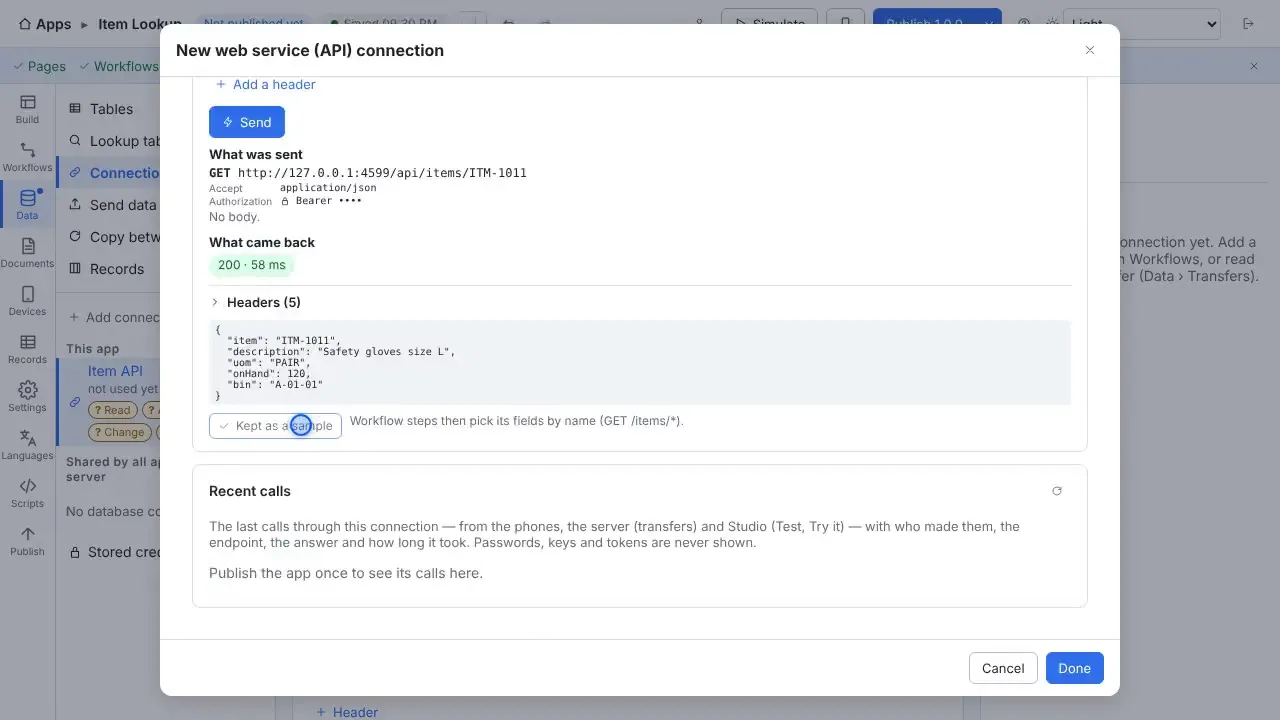
Pull Data from a REST API into a Handheld App
Learn an endpoint from a curl command, try it, and call it from a workflow, so a scan fills the description and the quantity on hand from your API.
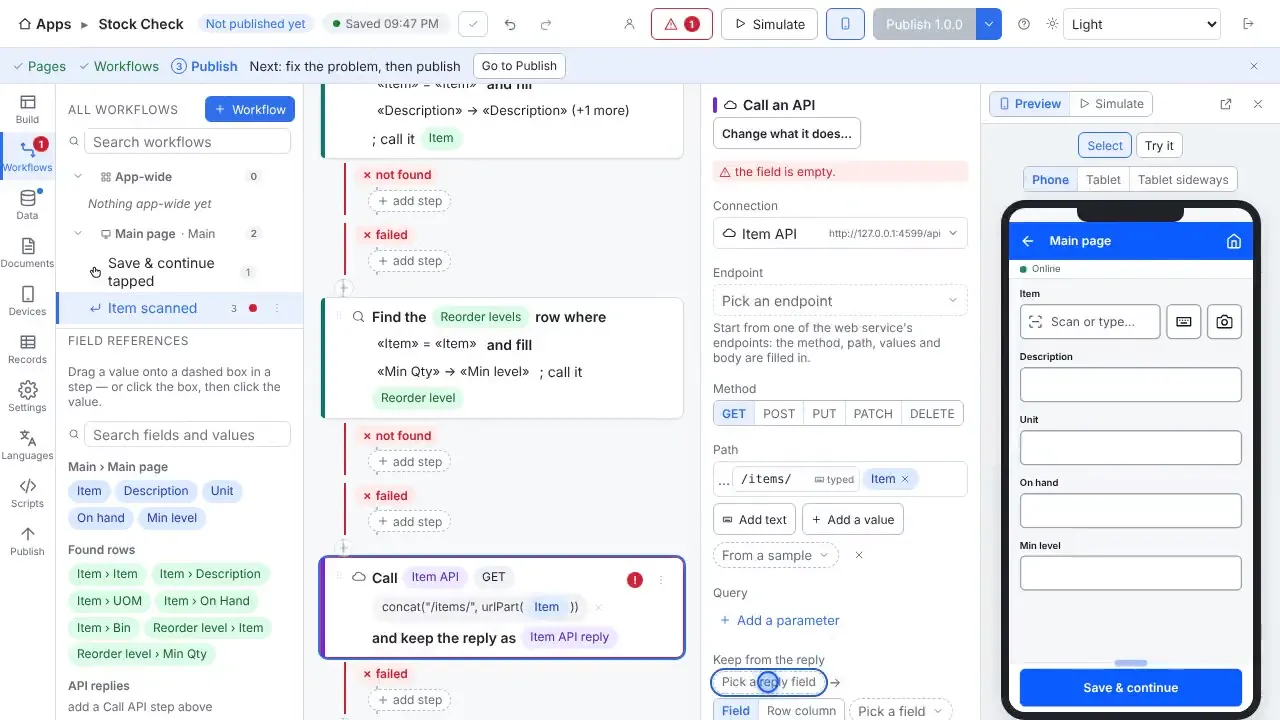
Use a Database, a File and an API in One Workflow
Build one workflow that fills fields from three places at once: a database lookup, a file lookup and an API call, all from a single scan.
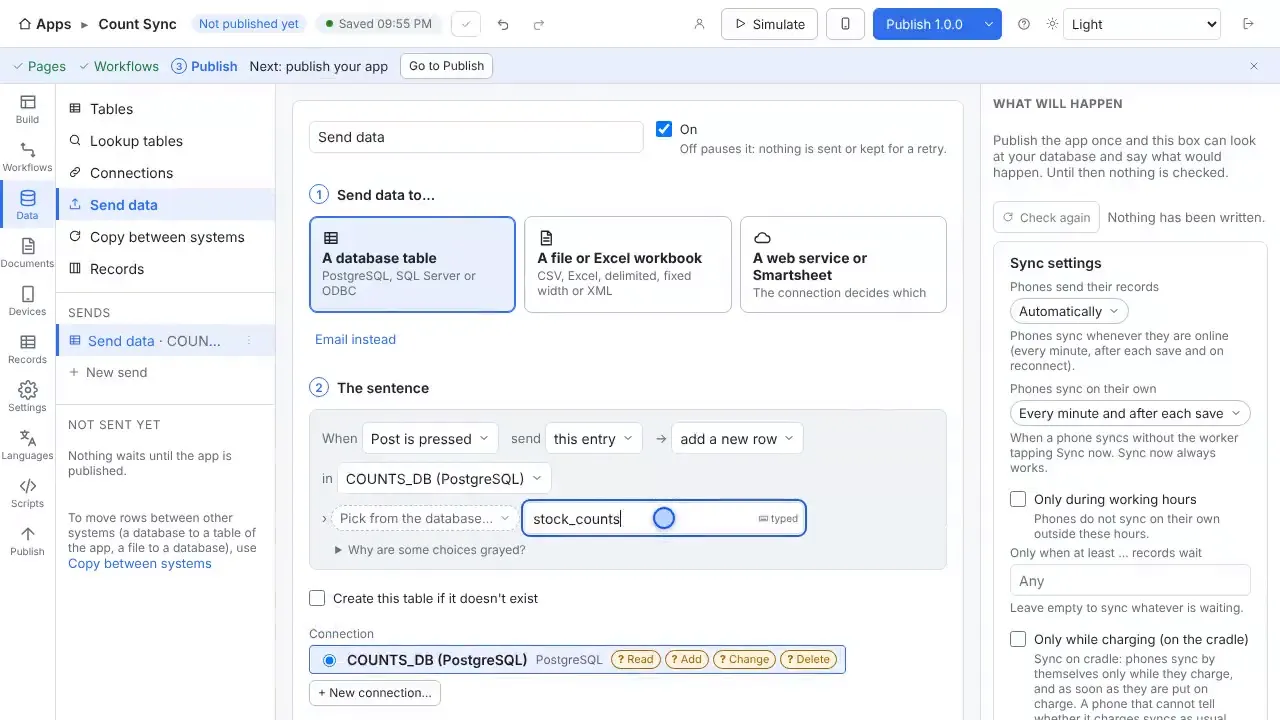
Post Handheld Data to a Database, a File or a Web Service
Send what workers collect to a database table, a file or Excel workbook, or a web service. Every send is one sentence, and a Post button runs them all.
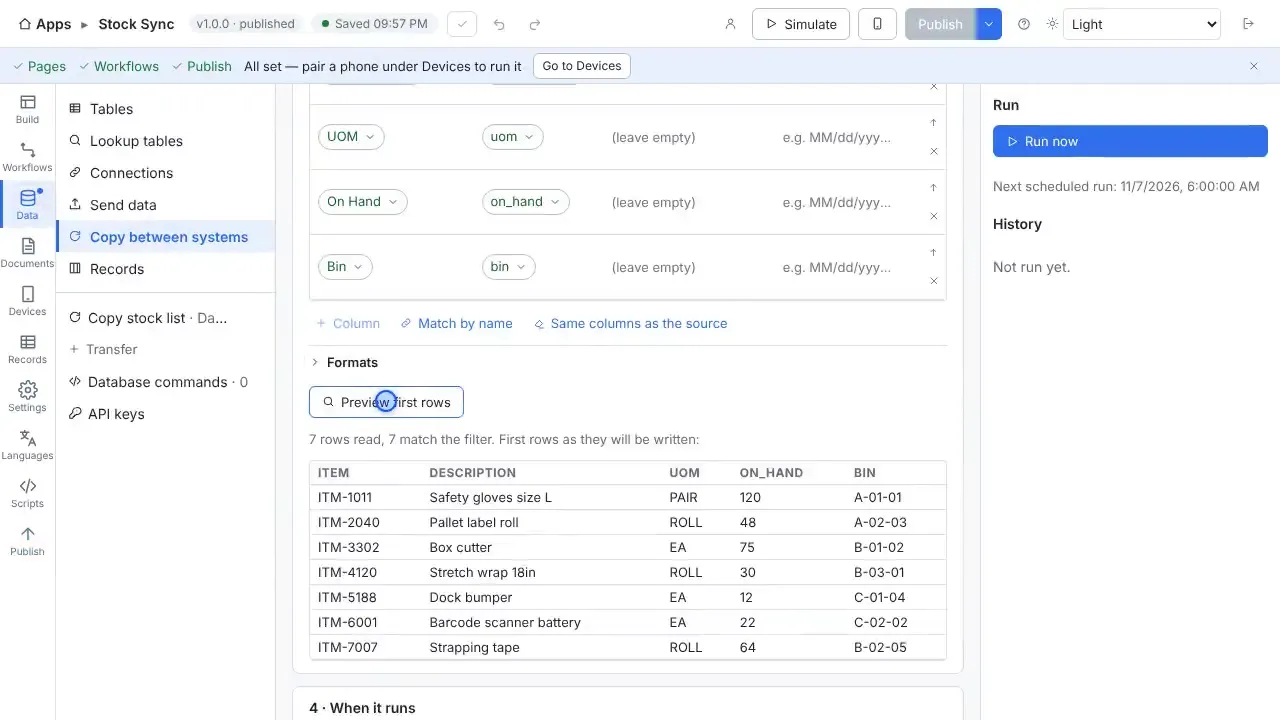
Copy Data Between Systems on a Schedule
Copy rows from a database into a lookup table of the app, map the columns, set the times it runs, and run it once to see the result.
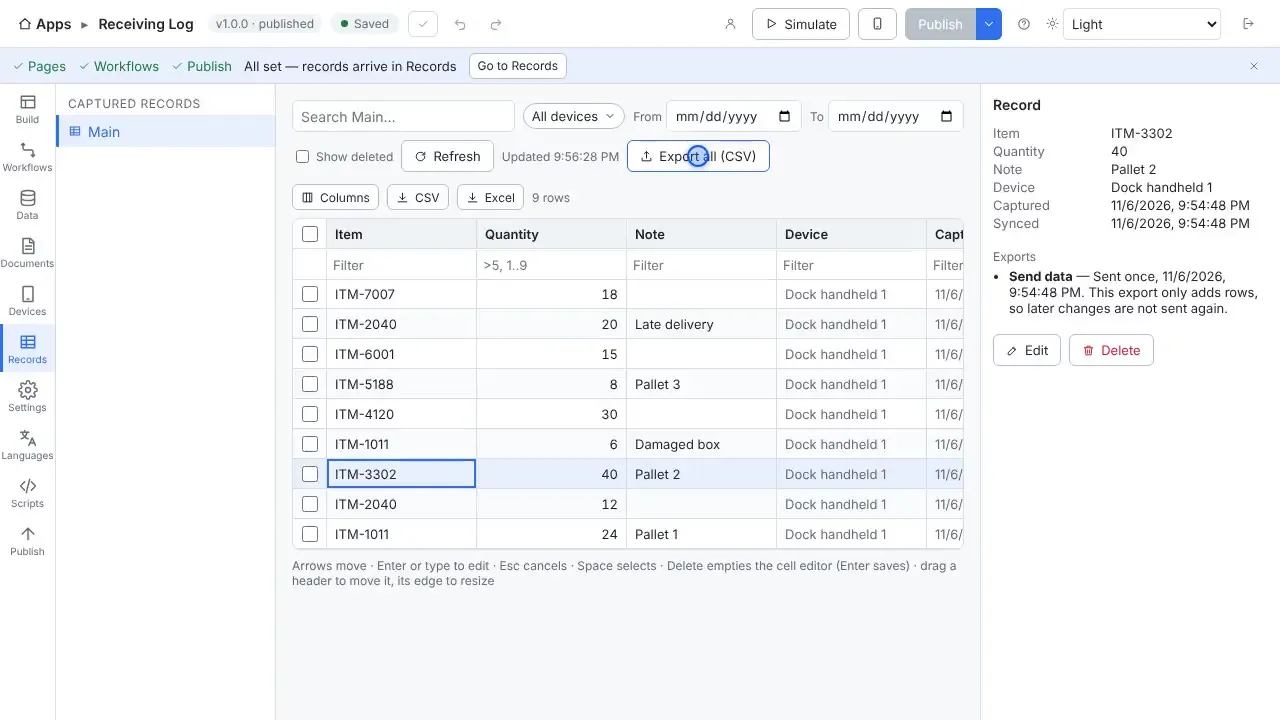
Browse Collected Records and Export Them to Excel
Look at the records workers have collected, search them, download them as an Excel workbook or CSV file, and set up a workbook that fills itself after every sync.
Run and manage
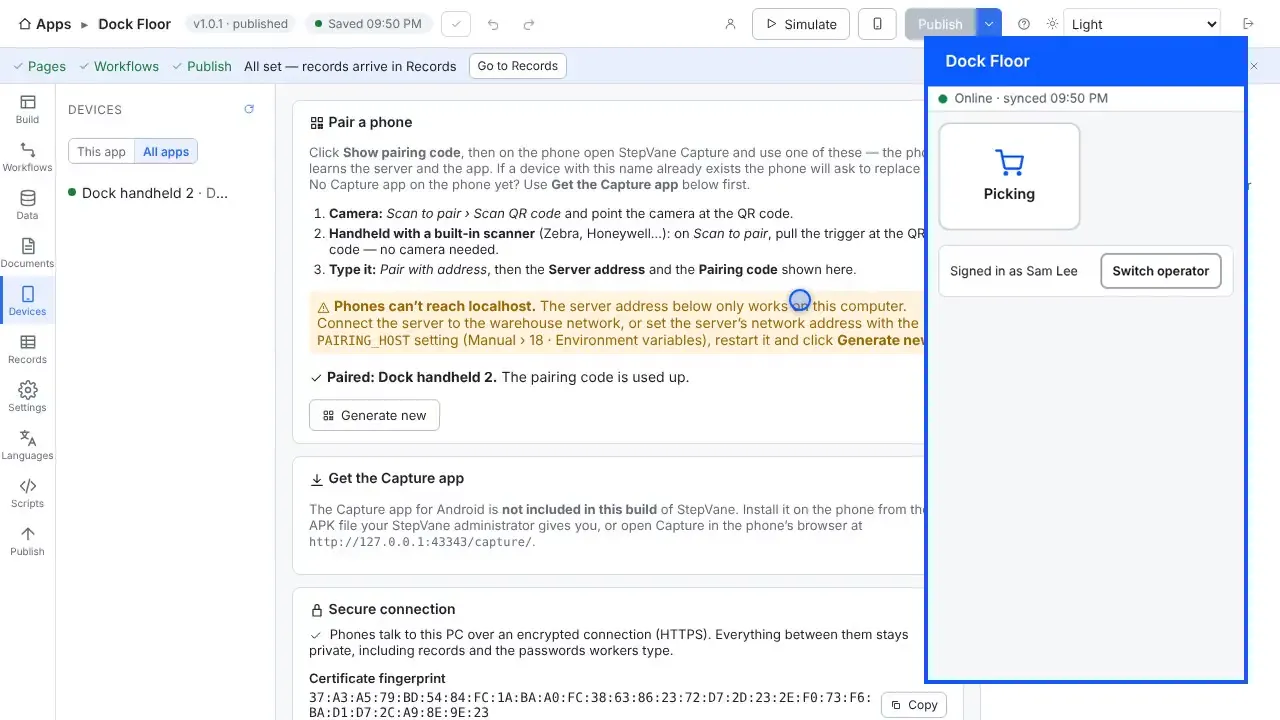
Operators, PIN Login and Permissions for Handhelds
Add operators with PINs so the phone asks who is working, limit the sessions each one may open, and use roles to limit what they may do.
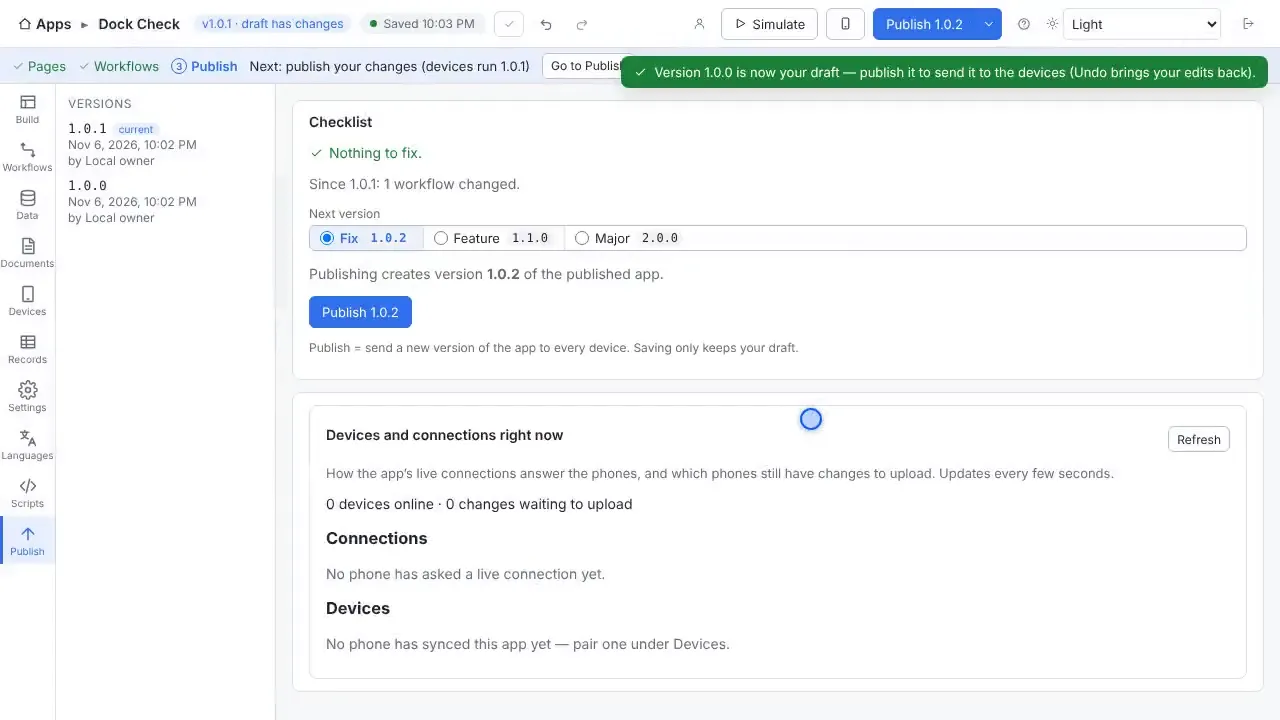
Test, Publish and Roll Back a Handheld App Version
Test a small workflow in Simulate, fix what the Checklist finds, publish version 1.0.0, publish a change, then restore the older version and publish it again.
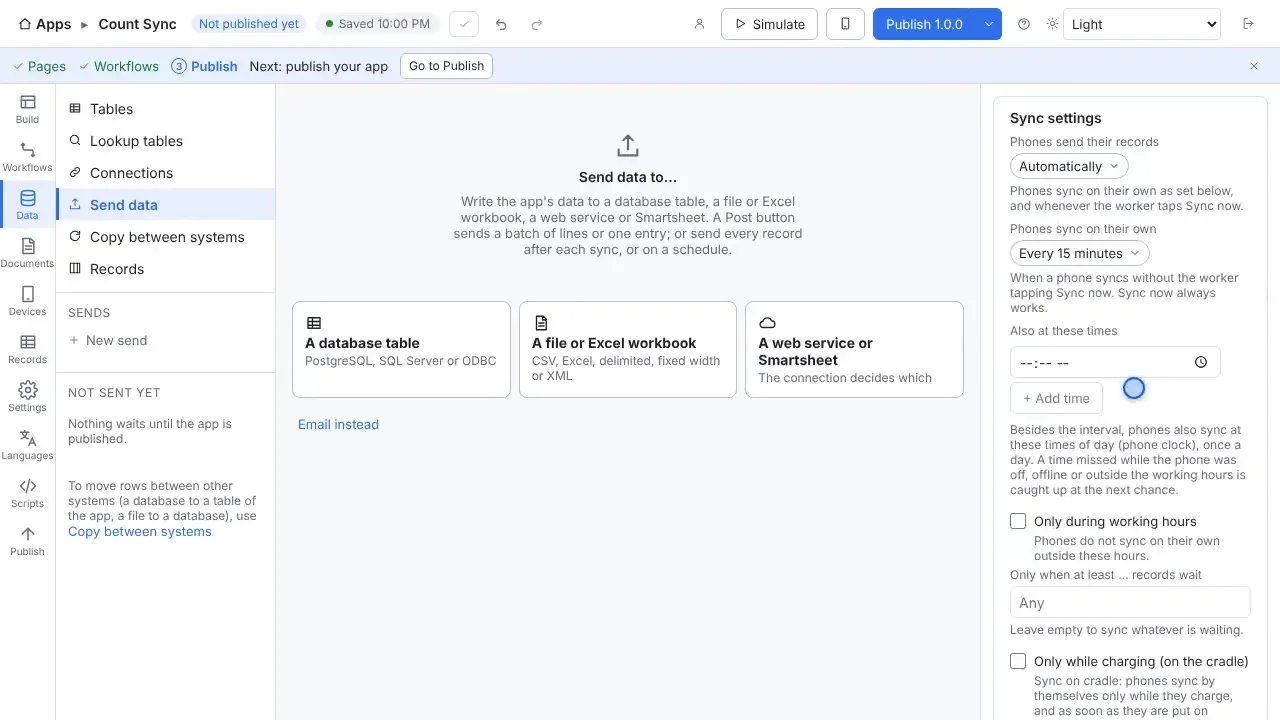
Control When Handhelds Sync, and Sync from Off Site
Choose when phones send their records and when failed sends are retried, then see where off-site sync through a relay is set up.
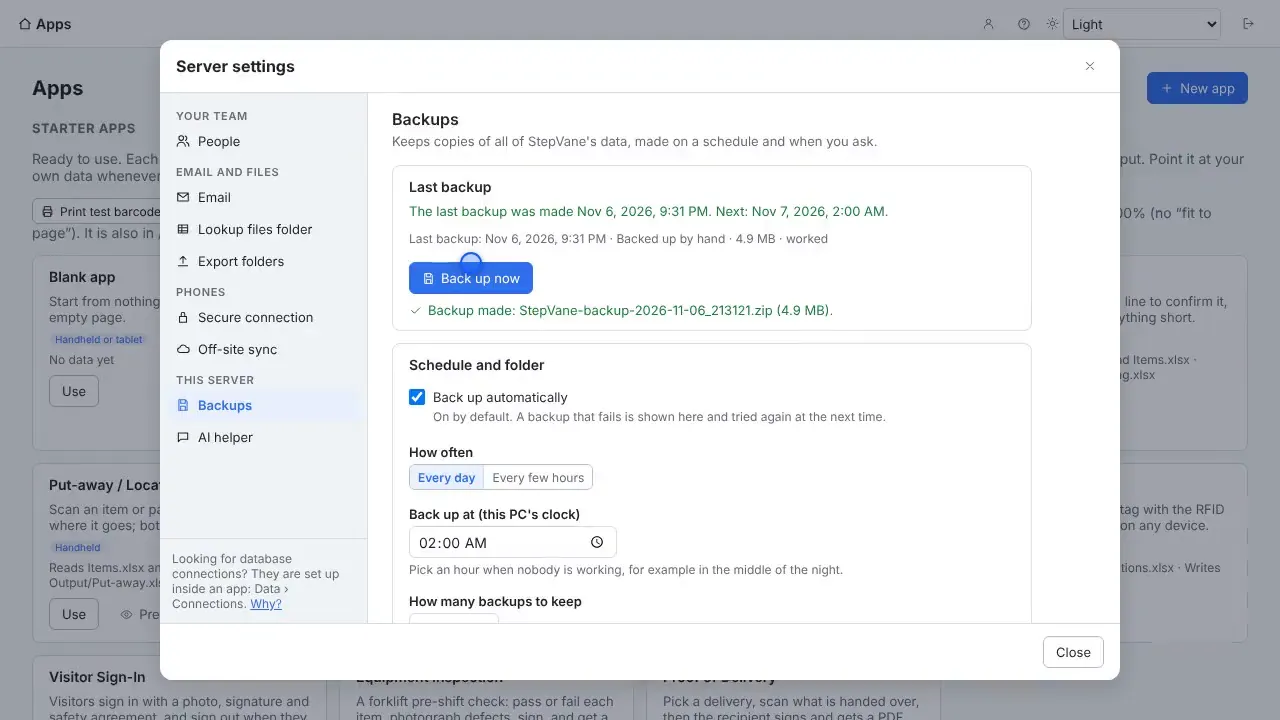
Back Up and Restore Your StepVane Server
Look at who can sign in, make a backup, set up automatic backups with a password, find where a restore is done, and check an app's health.
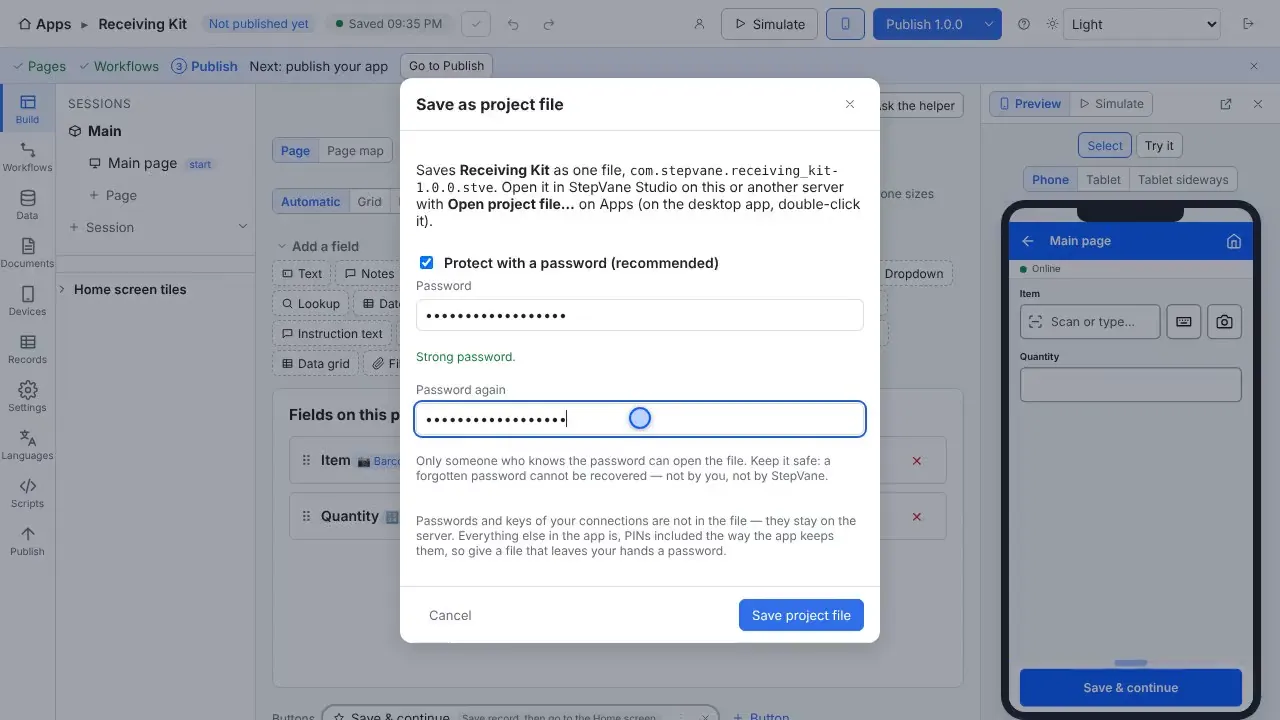
Move an App to Another Server with a Project File
Save an app as a password-protected project file, and open it on another server as a new draft.
Start with one device today
Free for Studio, one handheld and one worker. No cloud account, no credit card.